Offline conversion import: send CRM leads back to Google Ads
A step-by-step walkthrough for sending qualified leads and sales from your CRM back to Google Ads, including the 2026 Data Manager change and how to handle phone and WhatsApp leads.
On this page
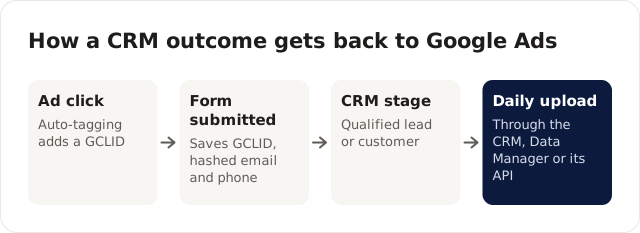
A lead fills in your form on Monday, your team qualifies them on Wednesday, and they sign the week after. Google Ads only saw Monday. To send the rest back, capture the click ID (GCLID) and the lead's email or phone when the form is submitted, store them with the lead in your CRM, and upload a conversion when the lead becomes qualified or a customer. Google now recommends enhanced conversions for leads, which matches on hashed email or phone, over GCLID-only import, and suggests including GCLIDs as well wherever you have them.
This walkthrough is for businesses that already track form submissions in Google Ads and want Google to optimise for leads that turn into customers. You'll need someone who can edit your website forms and your CRM, or a CRM with a Google Ads connection built in.
Before the steps: Cloudgramam sets this up for clients as part of paid Google Ads work, so we have an interest. Your ad spend is paid to Google directly. The Google details below were checked on its help pages on 16 November 2026.
Should you use GCLID import or enhanced conversions for leads?
Use enhanced conversions for leads and send the GCLID as well. That's what Google recommends, and having both gives each lead two ways to match.
| Offline conversion import (GCLID) | Enhanced conversions for leads | |
|---|---|---|
| What links the lead to the ad click | The Google Click ID saved with the lead | Hashed email or phone captured by the Google tag, matched with the same data you upload |
| Website work | Save the GCLID from the landing page URL into a hidden form field | Configure the Google tag to capture hashed lead data |
| Google's view | Still supported | Recommended, with GCLIDs included where possible |
Sources: Google Ads Help on offline conversion imports and enhanced conversions for leads, checked 16 November 2026.
How do you set it up, step by step?
Seven steps. The first is a decision rather than a setting, and it's the one people rush.
Step 1: choose the stages you'll send
Send two or three stages, not every status in your CRM. I'd start with these two:
- Qualified lead: your team spoke to them and they fit.
- Customer: they paid, booked or signed, with the value if you know it.
Make one of them primary for bidding, usually the qualified stage, because it happens sooner and more often than a sale, so Google gets more to learn from. Keep the raw form submission as a secondary conversion for reporting. Once you have a healthy number of sales each month, you can move the sale, with its value, to primary.
Step 2: create the conversion actions
In Google Ads, go to Goals, then Conversions, and create one conversion action per stage, as an import type. Name them exactly as your CRM names the stages, so nobody has to guess which is which later.
Step 3: turn on auto-tagging
Auto-tagging adds a GCLID to the landing page URL of every ad click. Without it there's no click ID to save, and GCLID import can't work at all.
Step 4: capture the click ID and contact details on the website
Save the GCLID from the landing page URL into a hidden field on every form, and set up the Google tag to capture hashed email and phone for enhanced conversions for leads.
This is the step where phone and WhatsApp leads fall through, because there's no form to hold a hidden field. Take an illustrative dental clinic that gets 70% of its ad leads as calls. The receptionist books appointments in the practice software, which has no idea which call came from an ad. Uploads cover only the 30% who used the form, so Google learns from a minority of patients and may push spend towards the kind of person who prefers forms.
Ways to narrow that gap:
- Use call conversions from ads and website call tracking, so calls over a set length count as enquiries in Google Ads.
- Record the caller's phone number in the booking. Enhanced conversions for leads matches on hashed phone, so a booked patient's number can be uploaded without a GCLID, if the Google tag captured that number earlier or the person is signed in to Google.
- For WhatsApp, use a landing page button that passes the GCLID into the first message, or a WhatsApp tool that records the click ID with the chat. The click-to-WhatsApp ads guide covers the follow-up side.
- Accept that some leads won't match. Track the share you can match and work to raise it, rather than waiting for 100%.
Google's enhanced conversions page notes that GCLIDs are required if you aren't using a tag to collect user-provided data. Without one or the other, a lead can't be matched at all.
Step 5: store the GCLID, email and phone with each lead
Every lead record in the CRM needs all three fields. After the website change goes live, open a handful of recent ad leads and check the fields are filled. One thing I always test here: some form plugins and CRM integrations quietly drop hidden fields they don't recognise, so the GCLID is captured on the page and then never arrives.
Step 6: automate the upload
Upload a conversion whenever a lead reaches a stage, through your CRM's built-in integration, Google's Data Manager, or the Data Manager API. Both Google help pages say that from 15 June 2026 these uploads moved to the Data Manager API and are blocked in the Google Ads API. If an older integration of yours stopped uploading around then, that's the likely reason.
Upload regularly, ideally daily. Google can only learn from conversions it receives, and old clicks eventually fall outside the conversion window.
Step 7: check the diagnostics after the first week
Open the upload diagnostics in Google Ads and fix any errors. Then compare the number of qualified leads uploaded with the number in your CRM for the same week. The difference is your match gap, and it's the number to bring down over the following months.
Frequently asked questions
What is offline conversion import in Google Ads?
Uploading conversions that happen outside your website, such as a qualified call or a signed contract, so Google can credit the ad click that started it.
Do I need a developer to set this up?
Usually some help, to add a hidden GCLID field and configure the Google tag. Many CRMs have built-in Google Ads connections that handle the upload itself.
Once Google is learning from qualified leads, it's worth revisiting whether Performance Max or Search should get more of the budget, and the performance marketing guide shows where this fits overall. If you'd rather hand the set-up over, it's part of our Google Ads management service.