SSO and SCIM for an LMS: OIDC, SAML and provisioning
A step-by-step set-up for single sign-on and SCIM in an LMS: choosing OpenID Connect or SAML 2.0, registering the app, matching users, testing safely, and using SCIM groups to enrol people in courses.
On this page
- What do SSO and SCIM each do?
- Step 1: should you choose OIDC or SAML?
- Step 2: how do you register the LMS with your identity provider?
- Step 3: how should users be matched to LMS accounts?
- Step 4: what should you test before switching everyone over?
- Step 5: how do you turn on SCIM provisioning?
- Step 6: how do groups turn into course enrolments?
- What doesn't this set-up cover?
Say your company runs Microsoft Entra ID and HR adds a batch of new starters every month. Without single sign-on, each one gets yet another password for the training portal. Without provisioning, someone types them into the LMS by hand and forgets to remove the leavers. The fix is two separate pieces: SSO (OpenID Connect or SAML 2.0) for sign-in, and SCIM 2.0 to create, update and switch off accounts. Set up SSO first, test it with a few people, then add SCIM and link groups to courses.
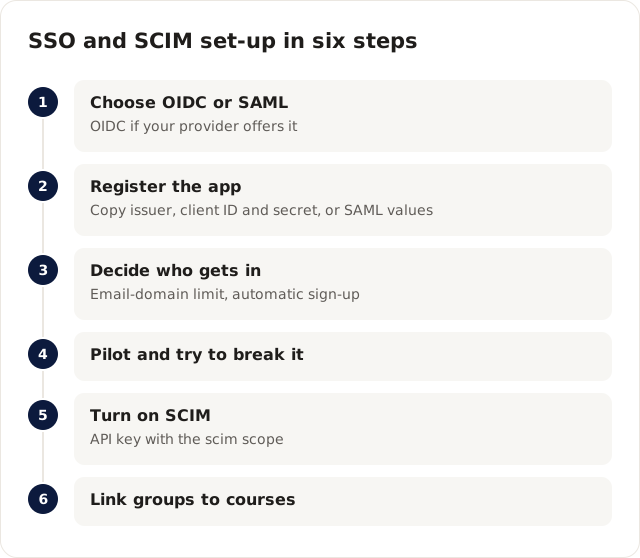
The steps below follow how Cloudgramam LMS does it, because that's the system I can describe exactly. The questions apply to any LMS. One caveat runs through everything: our OIDC, SAML and SCIM code was tested against simulated providers, not yet a real Entra, Okta or Google tenant. Test with your own tenant before you switch everyone over.
What do SSO and SCIM each do?
SSO decides who can sign in. SCIM decides which accounts exist. You can run one without the other, but together they keep the LMS in step with your directory.
OpenID Connect describes itself as a simple identity layer on top of OAuth 2.0; the identity provider hands the app a signed ID token with claims about the user. SAML 2.0 became an OASIS Standard on 15 March 2005 and passes an XML assertion from the identity provider (IdP) to the service provider (SP), here the LMS. SCIM is an HTTP protocol with JSON payloads that lets the directory push users and groups into an app, using the schema in RFC 7643. All four specs were checked on 16 November 2026.
Step 1: should you choose OIDC or SAML?
Choose OpenID Connect if your identity provider offers it, because it's simpler to configure and debug. Choose SAML when your IT policy requires it or your provider's app gallery only offers SAML for custom apps.
| OpenID Connect | SAML 2.0 | |
|---|---|---|
| What the LMS receives | A signed ID token (JSON) | A signed XML response |
| Flow in Cloudgramam LMS | Authorization code with PKCE | Service-provider initiated only |
| What the LMS checks | Token signature, issuer, audience, expiry and nonce | Signature, audience, issuer, timing and status; each request answered once |
| Settings | OIDC_ISSUER, OIDC_CLIENT_ID, OIDC_CLIENT_SECRET | SAML_ENTRY_POINT, SAML_IDP_CERT; metadata at /saml/metadata |
| Not included | No extra gaps listed; tested against a simulated provider only | Encrypted assertions, single logout, IdP-initiated sign-in |
The checks in the OIDC row are the ones the OpenID Connect Core spec requires in its ID token validation section. PKCE, short for Proof Key for Code Exchange, is defined in RFC 7636 and protects against a stolen authorization code being swapped for tokens.
Step 2: how do you register the LMS with your identity provider?
You create an app in the identity provider, copy a few values into the LMS settings, and give the provider the LMS's return address. It takes minutes once you know which values go where.
For OIDC, register a web app, add the LMS's redirect address (we give you the exact address during setup), and note the issuer URL, client ID and client secret. Those become OIDC_ISSUER, OIDC_CLIENT_ID and OIDC_CLIENT_SECRET on the server. Keep the secret in your server's environment, not in a shared document.
For SAML, give the IdP the LMS metadata address, /saml/metadata on your LMS domain, so it can read the LMS's details. From the IdP, copy its sign-in URL and signing certificate into SAML_ENTRY_POINT and SAML_IDP_CERT. Two settings to watch on the IdP side. Leave assertion encryption off, because our SAML code doesn't accept encrypted assertions. And make sure responses are signed, because unsigned ones are refused.
Step 3: how should users be matched to LMS accounts?
Decide who's allowed in before you decide how. The LMS has an optional email-domain limit and a switch for automatic sign-up, and both should be set on purpose.
With automatic sign-up on, anyone your IdP authenticates gets a learner account on first sign-in. Pair it with the email-domain limit so a personal Google account can't wander in. With it off, people need an existing account first, which suits a setup where SCIM creates accounts.
Plan for email changes. The OpenID Connect spec says, in its section on claim stability, that sub and iss are the only claims an app can rely on as a stable identifier, and that email must not be used as a unique identifier. In practice, people change surnames and companies change domains. Agree with your IT team how a renamed user is handled before it happens, and use SCIM's externalId, which RFC 7643 defines as an identifier set by the provisioning client, to keep the directory and the LMS tied together.
Step 4: what should you test before switching everyone over?
Run a pilot with a handful of real accounts, and try to break it. Here's the list I'd work through.
- A pilot user signs in and lands on their dashboard with the right name.
- A user outside the allowed email domain is refused.
- A user removed from the app in the IdP can no longer get in.
- An administrator still signs in at /admin/login with a password and two-step code. Administrators never sign in through SSO in Cloudgramam LMS, which also gives you a way in if the IdP is down.
- Multi-factor sign-in is enforced in the IdP. The LMS's own learner two-step sign-in covers password and email-code sign-in and leaves SSO to the identity provider.
- Signing out of the LMS, then checking whether the IdP session is still open. With SAML there's no single logout, so it will be; tell users on shared computers to sign out of both.
- Starting from the IdP's app tile. With SAML this won't work, because provider-initiated sign-in isn't included; point users at the LMS sign-in page instead.
Step 5: how do you turn on SCIM provisioning?
Create an API key with the scim scope under Administration, then point your identity provider's provisioning at the /scim/v2 address on your LMS domain with that key as the token. RFC 7644 doesn't fix one authentication scheme; it lists bearer tokens used over TLS as one option, which is what this is.
Once it's running, the directory can create, update and switch off learner accounts. Our SCIM endpoint supports Users with filters by userName or externalId, PATCH and PUT, the ServiceProviderConfig endpoint, and Bulk requests of up to 100 operations. A few behaviours to know:
- Only learner accounts are visible. Administrators and instructors can't be read or changed over SCIM.
- Deleting or deactivating a user disables the account: sessions end, sign-in stops, emails stop, and progress and certificates are kept. That matters for training records you might need later.
- New users get the usual invitation email to set a password.
- Sorting and ETags aren't included. RFC 7644 covers resource versioning with ETags in section 3.14, so check your provider doesn't insist on it.
Step 6: how do groups turn into course enrolments?
Link a directory group to courses under Administration, SCIM groups. Members of the group are enrolled in those courses, and removed people are unenrolled.
Take an illustrative "Warehouse staff" group linked to a forklift safety course and a fire safety course. When HR adds a new starter to the group in Entra, they're enrolled in both. When they move to the office team and leave the group, they're unenrolled from those courses. Enrolments made another way, say by a manager or a CSV import, are kept. For deadlines and recertification on top of this, see compliance training with an LMS.
What doesn't this set-up cover?
It doesn't cover SAML encrypted assertions, single logout or IdP-initiated sign-in, or SCIM sorting and ETags. It hasn't been run against a real Entra, Okta or Google tenant yet, so a test with your own tenant is part of setup, not an optional extra.
Cloudgramam sells this LMS, so take my set-up notes as a vendor's, and check them in your own tenant. The SSO and SCIM pieces fit into the bigger picture in corporate training LMS and the self-hosted LMS guide. You can try the learner side on the live demo, and the Cloudgramam LMS page has the full feature list and a demo form if you want us to walk through SSO with your IT team.