Intune basics: managing company laptops
A step-by-step Intune rollout for a small business: from deciding what every laptop needs to switching on Conditional Access without locking people out on Monday.

On this page
- What does Intune actually do?
- Which Microsoft 365 plan do you need before you start?
- First, what should every company laptop have?
- Second, how do you turn that into a compliance policy?
- Third, what should you check on the test laptops?
- Fourth, how do you enrol the laptops you already have?
- Fifth, how does Windows Autopilot handle new laptops?
- Sixth, what about staff using their own phones?
- Last, when is it safe to block non-compliant devices?
Microsoft Intune lets a small business set up, secure and wipe company laptops from one place, and most small firms get it through Microsoft 365 Business Premium. Roll it out in this order: decide what every laptop needs, write that down as a compliance policy, test on two laptops, enrol the rest a team at a time, set up Autopilot for new ones, decide on personal phones, and only then block devices that don't comply.
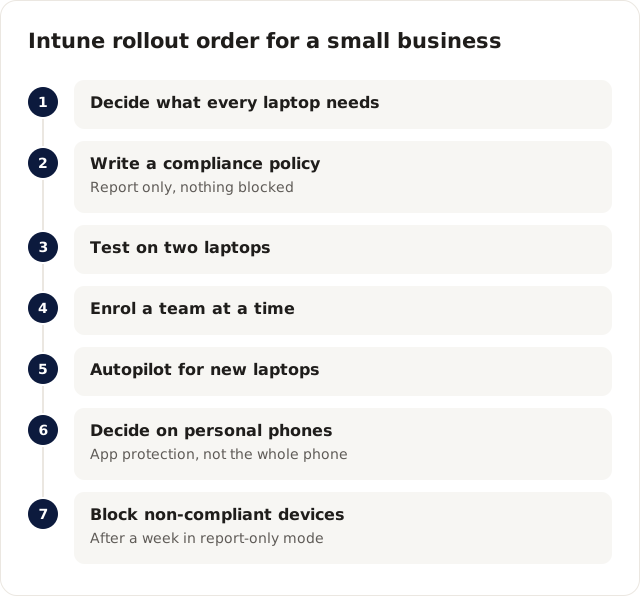
Blocking comes last on purpose: every step before it only reports.
This is for small businesses with company laptops and no full-time IT team. It assumes you're already on Microsoft 365; if not, the Microsoft 365 migration checklist comes first.
What does Intune actually do?
Intune applies the same settings to every company device, checks those devices meet your rules, and can wipe one remotely. Day to day, that looks like this:
| Job | What it means day to day |
|---|---|
| Enrolment and set-up | A new laptop signs in with the user's work account and installs apps and settings itself |
| Configuration | Encryption, firewall, screen lock and other settings applied the same way everywhere |
| Updates | Windows and Office updates on a schedule you choose |
| Compliance | Rules a device must meet, such as encrypted and up to date |
| Access control | With Conditional Access, non-compliant devices can't open company email and files |
| Lost or leaving | Wipe a device, or remove only company data |
Which Microsoft 365 plan do you need before you start?
Business Premium. Microsoft's plan comparison lists Intune Plan 1 in Business Premium (checked 16 November 2026), and Business Basic and Standard don't include it.
Microsoft Learn's Business Premium security FAQ says Business Premium also includes Entra ID P1, which provides Conditional Access, the feature that blocks non-compliant devices in the last step. Each Business Premium user can use the apps on up to five PCs or Macs, five tablets and five phones, per Microsoft's plans page. You can mix plans, but anyone whose laptop you want managed needs Premium.
First, what should every company laptop have?
A short list of settings and apps that apply to everyone, written down before you open Intune. Keep it small to start.
For most small firms, I start with disk encryption, a screen lock after a few minutes, the firewall on, Windows updates within a set window, and Office plus Teams installed. Department-specific apps can come later. Every extra setting is one more thing that can stop a laptop being marked compliant, so add them once the basics are stable.
Second, how do you turn that into a compliance policy?
A compliance policy is the list of rules a device must meet to count as compliant, such as encrypted and up to date. Create it in Intune from the list above.
At this stage the policy only reports. Nothing is blocked yet, which is the point: you get to see which devices pass before anyone is affected.
Third, what should you check on the test laptops?
Enrol one or two laptops, ideally including one that a non-technical colleague uses, and watch what they see. Check that encryption finishes, apps install, and the device shows as compliant in Intune's compliance report.
Note anything that confuses the test user, such as a restart prompt or a sign-in step, and put it in the one-page guide you'll send everyone else.
Fourth, how do you enrol the laptops you already have?
One team at a time, with the guide in hand. Start with a team that's patient with change, then move through the rest over a week or two.
Expect a few awkward devices: an older laptop that can't meet a rule, a shared reception PC signed in under a personal account, a director's home PC used for work. Write each one down. You'll need decisions on them before the last step.
Fifth, how does Windows Autopilot handle new laptops?
Autopilot sets up new Windows laptops without IT touching them. The laptop is registered to your organisation, shipped straight to the employee, and when they sign in with their work account it joins your organisation and installs everything.
Microsoft's Autopilot requirements list Entra ID P1 or P2 plus Intune, which Business Premium provides. Laptops bought from many business resellers can be registered for you at purchase, so ask before you order.
Sixth, what about staff using their own phones?
Protect company data inside the work apps rather than managing the whole personal phone. Intune can do that, and it covers iOS, Android and macOS as well as Windows, per Microsoft Learn's Business Premium pages.
With app protection, Intune can require a PIN on Outlook and Teams, stop copy-paste from work apps into personal ones, and remove company data when someone leaves, without touching their photos. Decide the policy and tell staff before you apply it. People accept it far more easily when they know the company can't see their personal apps.
Last, when is it safe to block non-compliant devices?
Only when Conditional Access in report-only mode shows nobody would be wrongly blocked, and every device you care about is listed as compliant. Switching enforcement on is the step that causes the "Monday lock-out".
Take an illustrative 35-person firm that enrols 30 laptops, sets a compliance rule requiring encryption, and turns on a policy blocking non-compliant devices on a Friday afternoon. On Monday, five people can't open email. Two laptops never finished encrypting, one older laptop can't meet the rule, the managing director uses a home PC that was never enrolled, and the reception PC is shared and signed in under a personal account.
To switch on enforcement without that Monday:
- Run the Conditional Access policy in report-only mode for a week and read who would have been blocked.
- Check Intune's compliance report until every device you expect is compliant.
- Make a decision for each awkward device from step four: enrol it, replace it, or allow browser-only access with limits.
- Exclude a break-glass admin account from the policy, so you can always get in to fix things.
- Switch it on early in the week, with someone available to help.
If you also plan to roll out Copilot, the same tenant review is a good time to check file sharing; see Copilot readiness and oversharing.
Cloudgramam sets up and manages Intune and Microsoft 365 for clients, so we sell the work described here. Licences go to Microsoft or your licensing partner. Plan details were checked on Microsoft's pages on 16 November 2026. To have your laptops enrolled and managed, see our Microsoft 365 services.