Microsoft 365 migration checklist for small businesses
A Microsoft 365 migration laid out week by week, from planning to the first month after cut-over, with a worked licence cost, the DNS order that keeps mail safe, and the addresses people forget.

On this page
- What does a Microsoft 365 migration look like week by week?
- What happens in planning week?
- What gets set up in week 2, before any data moves?
- How do mail and files get copied in weeks 2 and 3?
- What should the cut-over weekend look like?
- What should you check in the first month after cut-over?
- Frequently asked questions
Two to six weeks is a realistic span for a small business moving to Microsoft 365, and only one weekend of it is the switch itself. The rest is getting the order right: choose a licence for each person, verify your domain, create every user and shared address, copy mail and files while the old system keeps running, turn on multi-factor sign-in, and only then change the MX record and run a final sync. Changing DNS too early is the easiest way to lose email, so the timeline below keeps that step late on purpose.
This is written for businesses of up to a few hundred people moving from another email provider, a file server or an older Exchange Server. Microsoft's business plans cover 1 to 300 users. If you're merging two Microsoft 365 tenants after an acquisition, or you have thousands of mailboxes, you need a fuller project plan than this one.
Our interest, up front: Cloudgramam plans and runs Microsoft 365 migrations, so we sell the work this page describes. Licences are billed by Microsoft or your licensing partner, not by us. Prices and limits below were checked on Microsoft's own pages on 16 November 2026, and Microsoft changes them often.
What does a Microsoft 365 migration look like week by week?
A small-business migration runs in five stages: a planning week, a week of tenant set-up, a week or two of background copying, one cut-over weekend, and a month of checks. The table shows what each stage should leave you with.
| When | What gets done | You're ready to move on when |
|---|---|---|
| Planning week | List every mailbox, shared address, alias and anything that sends mail as your domain; choose licences | One written list covers everything that sends or receives mail, and each person has a licence chosen |
| Week 2: set-up | Verify the domain, create users, shared mailboxes and groups, set admin roles, turn on multi-factor sign-in | Every user can sign in; the MX record still points at the old system |
| Weeks 2 and 3: copying | Mail, calendars and contacts copy in the background; files go to OneDrive and SharePoint | The first full pass is done and spot checks match |
| Cut-over weekend | Change MX, run a final sync, set up Outlook and phones, test every sender on the list | Mail from outside addresses arrives, and every device and system on the list has sent a test |
| First month | Fix gaps, tidy licences and sharing, retire the old system | Nothing has arrived at the old system for a couple of weeks |
What happens in planning week?
Planning week produces two lists: everything that touches your email, and the licence each person needs. You don't need to touch Microsoft 365 yet.
When I plan a migration, the first thing I ask for is the login to wherever the domain's DNS is hosted. It's often in a registrar account set up by a web designer who has moved on, or in a former director's name. Finding that out in planning week costs a phone call. Finding it out on cut-over Friday costs the weekend.
Which licence does each person need?
Pick licences by what each group of staff does, not one plan for everyone. On Microsoft's US business plans page (checked 16 November 2026), paid yearly:
| Plan | Price per user/month | Good for |
|---|---|---|
| Business Basic | $7.00 | Staff who work in a browser or on phones: email, Teams, web Office apps |
| Business Standard with Copilot | $23.50 | Staff who need desktop Office apps, with Copilot included |
| Business Premium with Copilot | $32.00 | Adds device management (Intune Plan 1) and stronger security; the usual choice when you hold client or personal data |
Prices differ by country and change, so check your local page or partner. Every plan includes a 100 GB primary mailbox and 1 TB of cloud storage per user, per the same page. You can mix plans in one organisation, and for most small firms you should.
What does a 20-person licence mix cost?
Take an illustrative 20-person business: six people in the warehouse and on reception who only use a browser and a phone, and fourteen office staff who handle client data on company laptops. Using the US prices above, paid yearly:
| Group | Users | Plan | Monthly cost |
|---|---|---|---|
| Warehouse and reception | 6 | Business Basic at $7.00 | $42.00 |
| Office staff handling client data | 14 | Business Premium with Copilot at $32.00 | $448.00 |
| Total | 20 | $490.00 a month, $5,880 a year |
Putting all 20 on Premium would cost $640 a month. Putting everyone on Basic would cost $140, but the office staff would lose desktop apps and device management. The mix is a decision about what each group needs. Plug in your own country's prices; the method is the same.
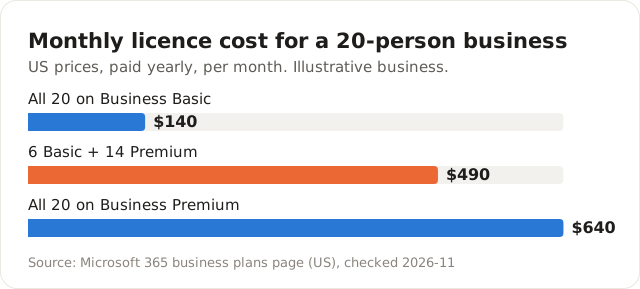
The mix costs $150 a month less than all-Premium and keeps device management for the people who handle client data.
What isn't a mailbox but still has to move?
Shared addresses, aliases and every system that sends mail as your domain. This is the item that ruins Monday mornings, and planning week is when to find it.
Picture an illustrative 40-person firm moving from another email provider. The 40 mailboxes move cleanly. On Monday, nobody gets the website's contact form emails, the office scanner can't send scans, the accounting software's invoice emails bounce, and enquiries to sales@ go nowhere, because sales@ was an alias on the old system that nobody wrote down.
To catch these before they bite:
- List every address that receives mail: personal mailboxes, shared addresses like info@, sales@ and accounts@, aliases and distribution lists. Each one gets recreated in Microsoft 365 as a shared mailbox, an alias or a group.
- List everything that sends mail as your domain: the website, scanners and printers, accounting and CRM software, booking systems. Each needs new SMTP settings or a place in your SPF record.
- Search the old system's sent and received logs for the last month to catch anything nobody remembers.
- Mark each item on the list "test on Saturday", so it gets tried during cut-over and not discovered on Monday.
What gets set up in week 2, before any data moves?
Week 2 builds the new home and secures it while the old system carries on as normal. Mail delivery doesn't change this week.
What needs doing with the domain and DNS?
Add the domain in the Microsoft 365 admin center and prove you own it with a TXT record. Microsoft's DNS records guide then sets three rules that prevent most email problems:
- Add users and mailboxes before you update the MX record, so mail keeps working as it moves.
- Keep a single SPF record. If one exists for your old provider, add Microsoft's value (include:spf.protection.outlook.com) to it rather than creating a second record.
- Use a TTL of 3600 seconds (one hour) on the new MX record. Exchange Online only supports TTLs under six hours.
A few days before cut-over, lower the TTL on your current MX record too, so the change spreads quickly when you make it.
What about shared addresses from the planning list?
Create them now, as shared mailboxes or groups, not as extra paid users. Microsoft says a shared mailbox can hold up to 50 GB without its own licence, as long as the people using it have licensed mailboxes, and it caps a shared mailbox at 25 users. The guide to moving email to Exchange Online covers what to do when the old shared addresses were really one mailbox with a password six people knew.
Which security settings should be on from day one?
Turn on multi-factor sign-in for everyone this week, before data arrives, and give admins separate accounts that aren't used for daily email. Decide your external sharing settings on purpose rather than leaving the defaults. If you're on Business Premium, plan to enrol company laptops in Intune after cut-over; Intune basics has the order. If Copilot is on the roadmap, sharing settings matter even more, because Copilot can find anything a person has permission to see. See getting ready for Copilot.
How do mail and files get copied in weeks 2 and 3?
Mail and files copy in the background while everyone keeps working on the old system. Nobody should notice this stage.
The mail method depends on where mail lives now. Microsoft supports cutover and hybrid migration from Exchange Server, a dedicated Google Workspace migration, IMAP for most other providers, and PST import. Each moves different things; IMAP, for example, moves mail folders but not calendars or contacts. The email migration guide sets out what each method moves and skips.
Files go to two places. Personal working files go to each person's OneDrive. Shared team files go to SharePoint sites, which also sit behind Teams. Don't copy the old file server's folder tree as it is; long paths and folder-by-folder permissions cause most of the trouble. See what a small company's SharePoint actually needs.
Before the weekend, I spot-check a few mailboxes against the old system: folder counts, the oldest message, and one email with a large attachment. It takes half an hour and tells you whether the copy actually finished.
What should the cut-over weekend look like?
Cut-over is short if the weeks before it were done properly. A typical plan:
- Friday evening: run a final mail sync, then change the MX record.
- Saturday morning: send test mail from several outside addresses, including Gmail and Outlook.com, and check it lands in the new mailboxes.
- Saturday afternoon: work through the planning-week list. Submit the website form, scan to email, send an invoice from the accounting software, email sales@ from outside.
- Run a last sync to catch mail that reached the old system while DNS changed.
- Set up Outlook on each computer and the Outlook app on phones, or send staff a one-page guide with screenshots.
- Monday morning: have someone available in person or on a call for the first two hours.
Keep the old system running, read-only if you can, for at least a few weeks afterwards. Don't cancel it on Monday.
What should you check in the first month after cut-over?
The first month is for catching what the weekend missed and tidying what the move left behind. I'd work through it roughly in this order.
In the first week, watch mail flow. Ask a few customers and suppliers whether anything bounced, and read the message trace in the Exchange admin center for failures. Once mail is steady, set up DKIM and DMARC, which Microsoft's DNS guide recommends alongside SPF.
In the second week, look at licences. Remove licences from test and former-staff accounts, and confirm shared mailboxes under 50 GB aren't using paid licences they don't need. Check that every user has finished setting up multi-factor sign-in; there's usually one person who skipped it.
In weeks three and four, review which sites and files are shared outside the company, and check the old system's logs. When nothing has arrived there for a couple of weeks, cancel it.
Frequently asked questions
Will we lose email during the migration?
Not if users exist before the MX change, the old system keeps running, and you run a final sync after DNS has changed.
Does everyone have to move on the same weekend?
For cutover, Google Workspace and IMAP migrations, yes in practice, because the MX change moves mail delivery for the whole domain at once. A hybrid migration from Exchange Server lets old and new run side by side while you move people in batches.
Can a small business do this without outside help?
A firm with a handful of mailboxes on one provider and no file server often can, using this order. Once you add shared addresses, devices that send mail, a file server and Intune, the planning list gets long enough that an experienced pair of hands saves time.
If you'd rather hand over the planning and the weekend, our Microsoft 365 migration and management service runs exactly this timeline.