Moving email to Exchange Online without losing mail
Pick your Exchange Online migration method by where your mail lives now. What each method moves and skips per Microsoft, the shared mailbox trap on IMAP hosts, and the DNS order that keeps mail flowing.

On this page
- Which migration method matches where your email is now?
- What if you're moving from Exchange Server?
- What if you're moving from Google Workspace?
- What if your mail is on cPanel, Zoho or another IMAP host?
- What if your old email is in PST files?
- Should retention and archive policies stay on during the move?
- When should the MX record change?
- Frequently asked questions
Your old system picks the method for you. Exchange Server moves by cutover or hybrid migration, Google Workspace has its own Microsoft migration, most other hosts move by IMAP, and old PST files go through Microsoft's import service. The timing rule is the same for all of them: create every mailbox in Microsoft 365, copy while the old system still runs, change the MX record, then run a final sync.
This guide is for small and mid-size businesses moving email to Microsoft 365, and it's the email part of our Microsoft 365 migration checklist. Find your source system below, read what it won't move, then go to the DNS section.
Which migration method matches where your email is now?
Match the method to the source system, then plan around what that method skips. From Microsoft's mailbox migration guide and its pages on each method, checked 16 November 2026:
| Coming from | Method | What moves | What to plan for |
|---|---|---|---|
| Exchange 2003 to 2013, fewer than 2,000 mailboxes | Cutover (or express) | Mail, calendar, contacts | Up to 2,000 mailboxes, but Microsoft calls 150 or fewer more reasonable |
| Exchange 2013 or later, or a gradual move | Hybrid | Mail, calendar, contacts | Old and new run side by side while you move in batches |
| Google Workspace | Google Workspace migration | Mail and rules, calendar, contacts | Rules arrive switched off; some calendar items and settings stay behind |
| Other providers (cPanel, Zoho and so on) | IMAP | Mail folders only | No contacts, calendar or tasks; mailboxes must exist first |
| PST files | Import service | Whatever is in the PST | Upload over the network or ship drives |
Cloudgramam runs these migrations for clients, so we have a stake in the topic. Exchange Online licences are paid to Microsoft or your licensing partner; we charge only for the work.
What if you're moving from Exchange Server?
Use cutover for a small, older Exchange Server you want to leave in one go, and hybrid when you need to move people in groups. Both carry mail, calendars and contacts across.
Cutover migration covers Exchange 2003 to 2013. Microsoft allows up to 2,000 mailboxes but says 150 or fewer is more reasonable. For a 30-person office on an old server in a cupboard, cutover is usually the simpler choice: one weekend, then the server can be switched off after a safe period.
Hybrid suits Exchange 2013 or later, or any business that can't move everyone at once. Old and new systems run side by side, so a department can move one weekend and the next department a week later. The cost is more set-up work before the first mailbox moves.
What if you're moving from Google Workspace?
Microsoft's Google Workspace migration moves mail, rules, calendars and contacts, but it leaves several things behind that users will notice. Plan for those before the weekend, not after.
Per Microsoft's Google migration page, rules move but arrive switched off. Room bookings, shared calendars, event colours, vacation and auto-reply settings don't move at all. Contacts keep up to three email addresses each, so anyone who stored four addresses for one person loses one. You also need routing subdomains and users set up before the migration starts. The largest email that moves depends on your tenant's limit, which defaults to 35 MB.
I tell Google users three things on the Friday: switch your rules back on, set your out-of-office again, and rebook any meeting rooms you'd booked in Google Calendar. A short list beats a Monday of confused tickets.
What if your mail is on cPanel, Zoho or another IMAP host?
IMAP moves mail folders and nothing else, and Microsoft 365 mailboxes must exist before it starts. Calendars and contacts need a separate export and import.
Microsoft's IMAP migration page sets the limits: up to 500,000 items per mailbox, copied newest first, and no single email larger than 35 MB. It doesn't create mailboxes for you.
What about info@ and accounts@ boxes that everyone logs into?
Turn them into shared mailboxes rather than paying for a licence each. On many web hosts, shared addresses are really ordinary mailboxes with one password that several people know.
Say a 25-person company on a cPanel host has info@, accounts@ and support@, each a normal mailbox with a password six people know. The obvious move is buying three licences and sharing three new passwords. That costs three licences and keeps the old problem. The better structure:
- Create each as a shared mailbox in Exchange Online. Microsoft's shared mailbox page says one can store up to 50 GB without its own licence, as long as the people using it have licensed mailboxes, and that nobody should sign in to it directly.
- Give the right people access. The shared mailbox appears in their own Outlook beside their mailbox, with "send as" if they reply from it.
- Migrate the old mail into the shared mailbox by IMAP, using the old password one last time.
- Change that old password and close the account once the migration is checked.
The same page lists when a shared mailbox does need a licence: over 50 GB, in-place archiving, or litigation hold. It also caps a shared mailbox at 25 users; beyond that, Microsoft suggests a Microsoft 365 group.
What if your old email is in PST files?
Microsoft's import service brings PST files into Exchange Online, either uploaded over the network or shipped on drives. It moves whatever the PST contains.
Before importing a decade of PSTs, I ask who has opened them in the last year. Sometimes the answer is one person, and only their files need to come across. Importing everything else just fills mailboxes with mail nobody searches.
Should retention and archive policies stay on during the move?
No. Microsoft's IMAP and Google migration pages both strongly recommend disabling retention and archive (MRM) policies before migrating. Items those policies delete or move get flagged as missing, which makes real gaps harder to spot. Switch them back on after the final check.
When should the MX record change?
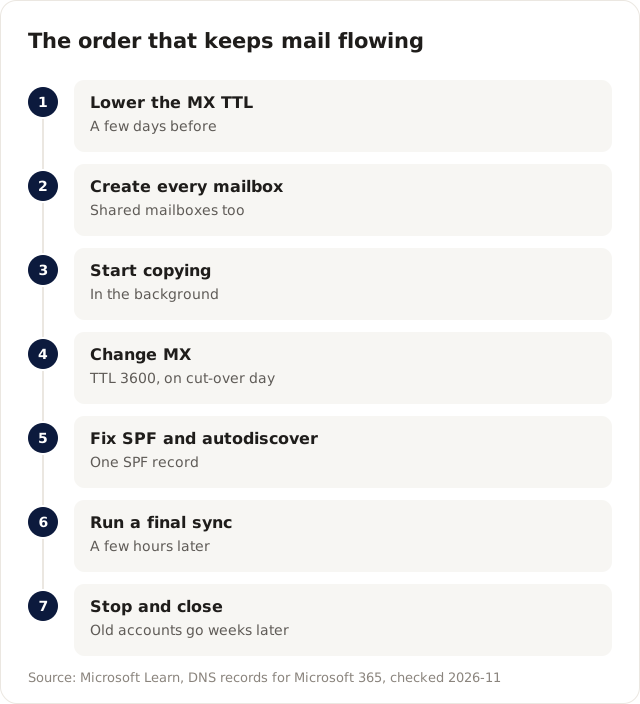
Change MX only after every mailbox exists and the first copy has finished. The full order:
- A few days before: lower the TTL on your current MX record.
- Create all users and mailboxes in Microsoft 365, including shared mailboxes.
- Start the migration and let it copy in the background.
- On cut-over day: change the MX record to the value Microsoft gives you, with a TTL of 3600 as Microsoft's DNS guide recommends. Exchange Online only supports TTLs under six hours.
- Update SPF to a single record that includes Microsoft's value, and add the autodiscover record so Outlook sets itself up.
- Run a final sync a few hours later to catch mail that reached the old system while DNS changed.
- Only then stop the migration and, weeks later, close the old accounts.
Staff need one page before the weekend: when the switch happens, that old mail will keep appearing over the weekend, how to set up Outlook and the phone app, what their method won't move, and who to call on Monday.
Frequently asked questions
How long does an email migration take?
The copying runs in the background for days, depending on mailbox sizes. The switch itself takes a weekend.
When can we cancel the old email provider?
Once nothing has arrived there for a couple of weeks after the MX change. Keep it running, read-only if possible, until then.
For the rest of the move, from licences to the first month, see the Microsoft 365 migration checklist, or have our Microsoft 365 migration service move your email over a weekend.